

Uploading Files
Key Concepts
Instead of posting JSON or similar text-based data, you can use the File Uploads to send more complex data in your API requests.
You can choose to upload a file, or to create multi-part from data that encapsulated multiple files
Handling File Uploads
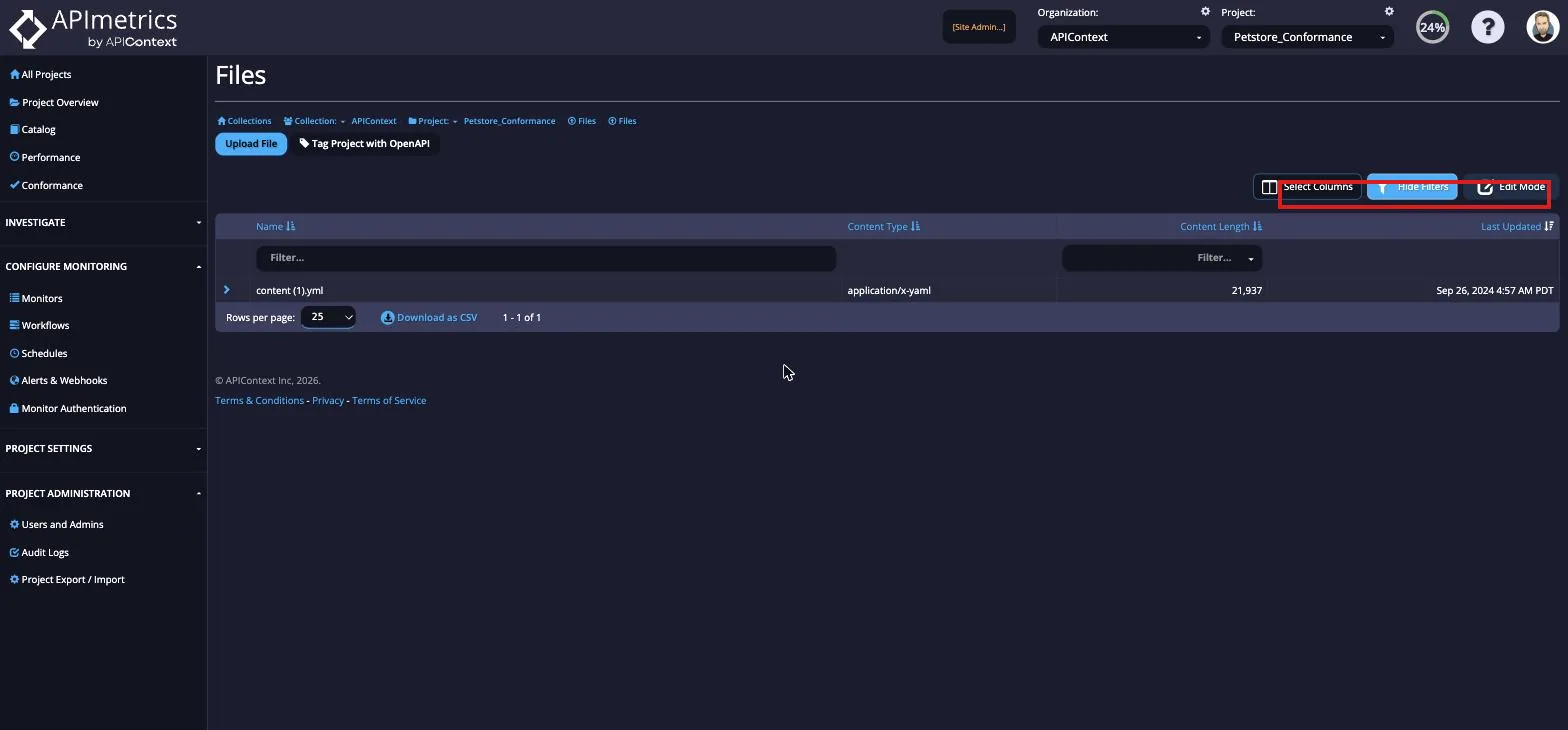
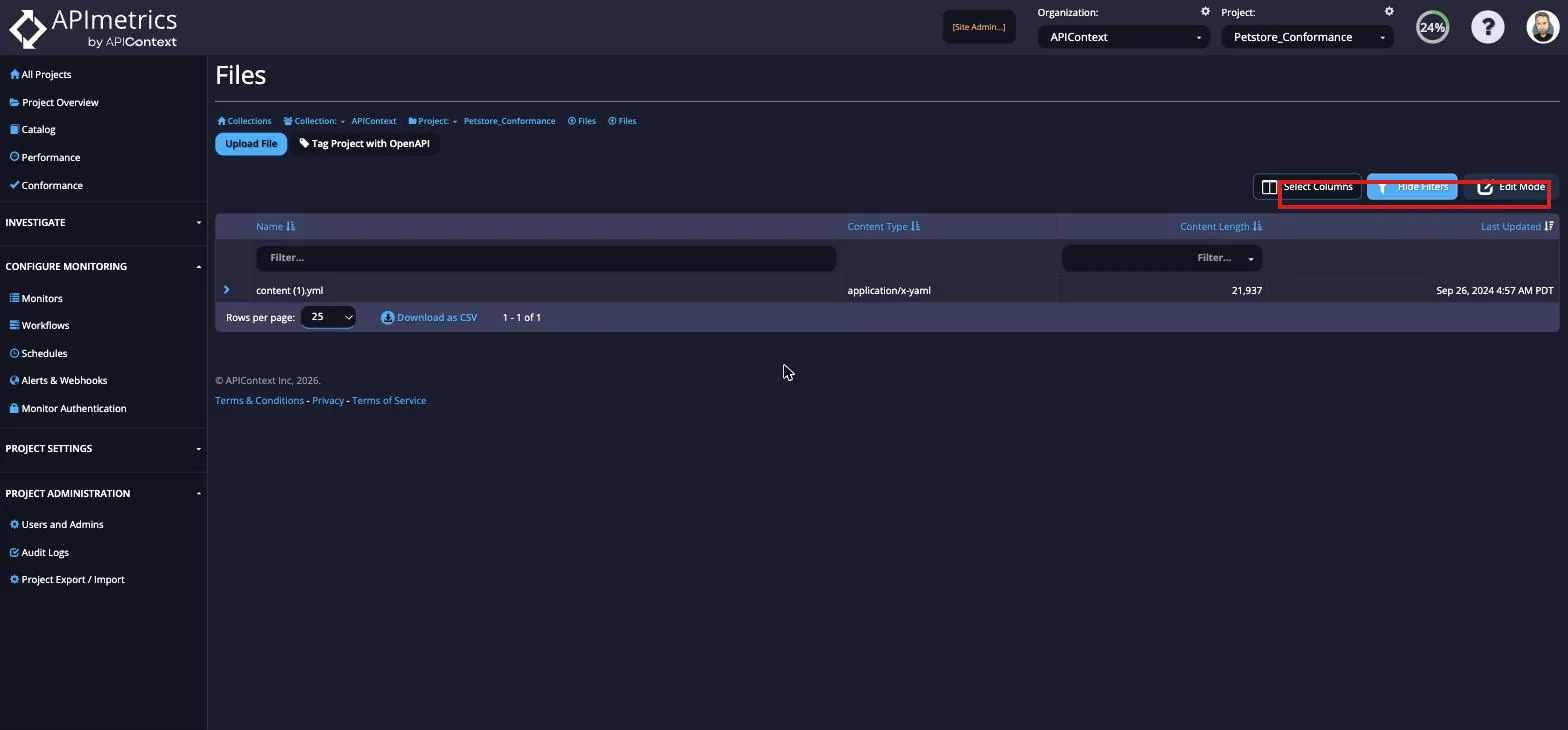
You can upload files from the Files link in the Advanced section on the left of each APImetrics page.
Click on the +Upload File button. This will open a file picker in your browser to upload.
If you wish to send Multi-part data, you can build up the data using the form-builder. Upload each file and give the each field a name. This will save the full multi-part message as one file.
Using the File in a monitor
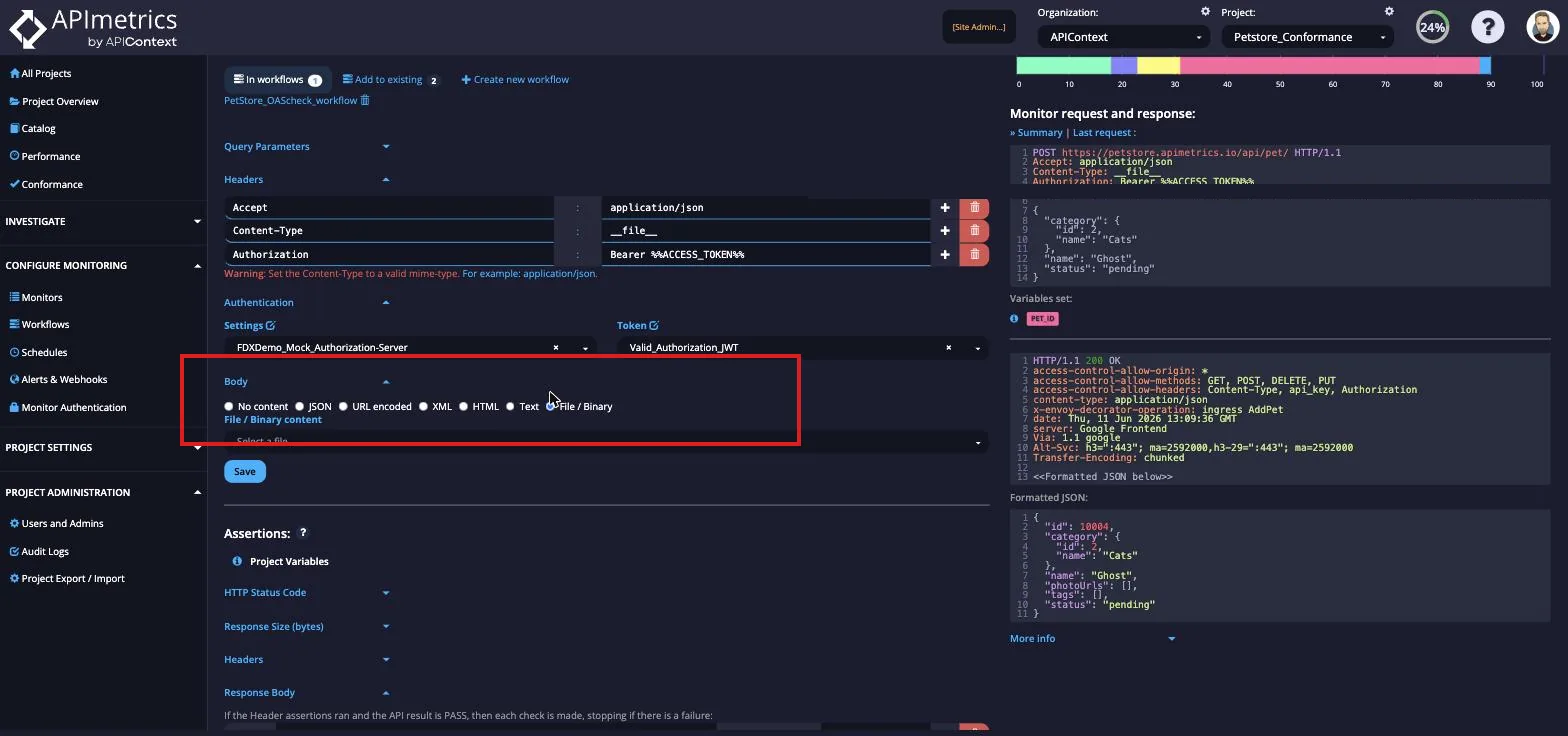
When editing the monitor, expand the "Body..." section.
Then select the File / Binary content type, this will expose the file picker:
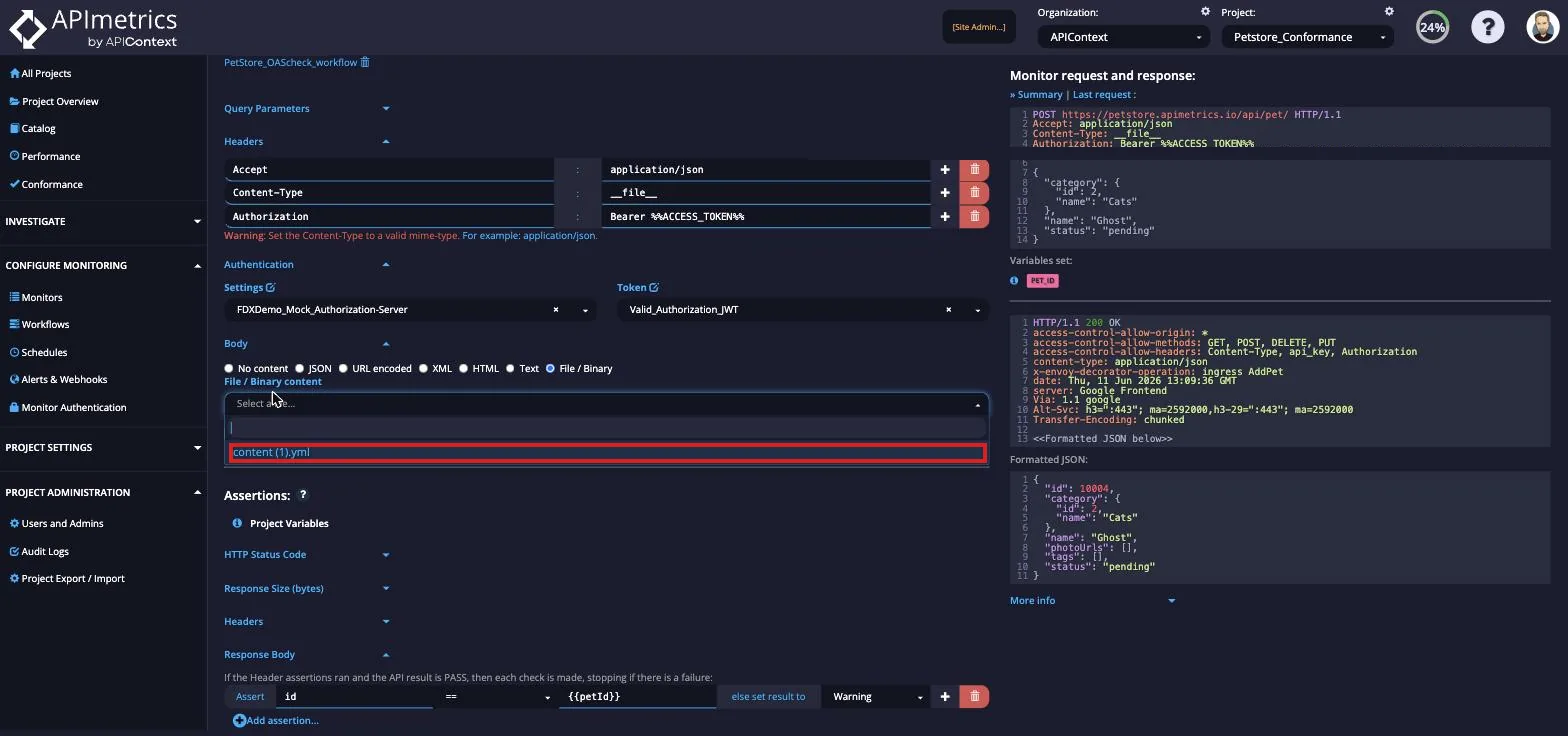
Then select the file you wish to use.
Remember to Click "Save" to store your changes.
Note that you must use an HTTP method of POST or PUT to upload content with the request